

AI Assistant for Work Efficiency
Reading time: 5 minutes
My Role
Research + UXUI Design
Device
browser extension
Tool
Figma
Context
As a busy professional, managing an endless stream of emails and tasks can be overwhelming. That’s why I created an AI assistant designed to boost your efficiency and help you manage your workload with ease.
Introducing LEO — your system-level AI assistant. Leveraging advanced AI technologies, Leo analyzes information across your computer to enhance work efficiency.
Leo respects your privacy, accessing data only with your permission. Whether invoked manually or activated automatically, Leo streamlines your workflow for a more productive day.
AI-related technologies
Large Language Model (LLM): Delivers context-aware, natural responses.
Natural Language Understanding (NLU): Supports seamless multilingual communication.
Computer Vision (CV): Analyzes and extracts key details from uploaded files.
Design Process
Competitor Analysis
After analyzing 10 competitors, I defined key traits of an ideal AI assistant and drafted a preliminary plan:
AI Type: System-level assistant — Enables seamless interaction across apps for a more flexible, integrated user experience.
Appearance: Flat, neutral design — Avoids the “uncanny valley,” aligns with modern UI principles, and minimizes distractions..

User Flow
Analyzing competitors’ interaction pros and cons, I developed an initial AI assistant concept and created user flow diagrams to map user mental models and key use cases.
Rapid Wireframes
After confirming scenarios and key functions, I created quick wireframes and iterated continuously for improvement.
UI Design
Finally, I moved to UI design, refining details like color schemes, font sizes, button sizes, and border thickness.
Design Solutions
I will present the following AI design solutions through the interactions between the target user, Lisa, and the AI assistant, Leo.

User Privacy Assurance
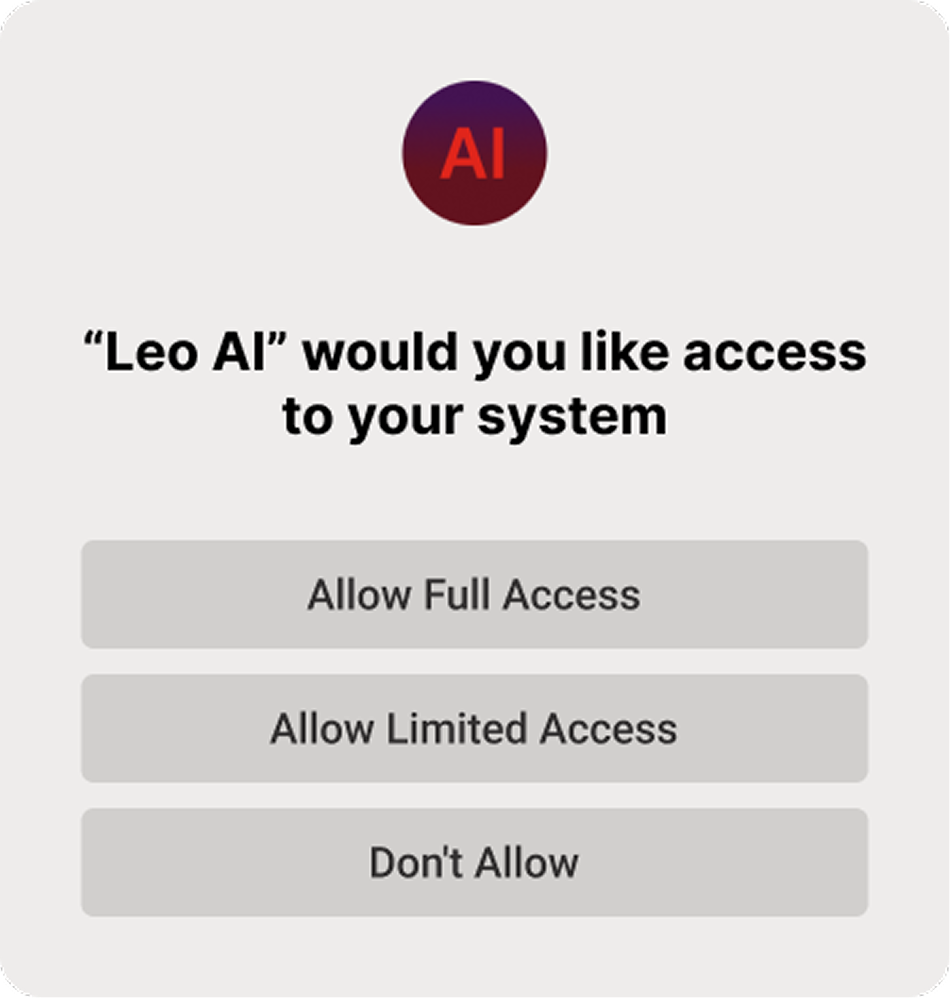
User privacy is paramount. After Leo’s initial installation, Lisa will see a privacy authorization pop-up offering full access, partial access (authorized app data only), or no access. She can adjust these permissions anytime in settings.
Activate Leo
The AI assistant can be activated in two ways:
User Initiated: Say “Hi Leo” or double-click the AI icon.
Automatic: Leo activates automatically under specific conditions and prompts the user.
Leo understands and responds to natural language input, whether spoken or typed.
AI Technologies Used:
Natural Language Processing (NLP), Speech Recognition, Machine Learning, Contextual Awareness, and Predictive Analytics.

Where is Leo
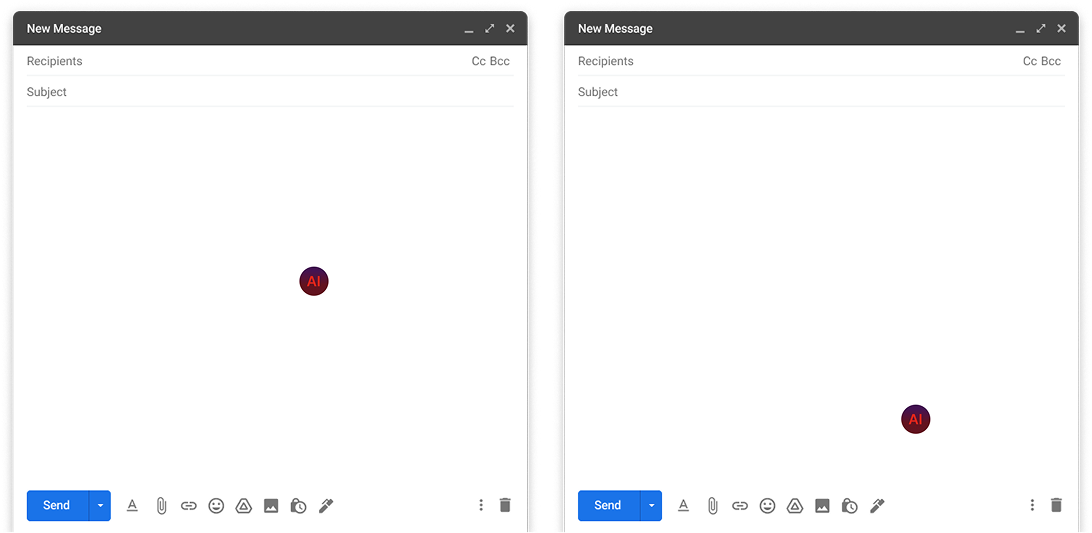
Leo appears as an AI icon by default in the bottom-right corner of the screen, ensuring:
Easy Access: Quick location and activation of features.
Space Efficiency: Positioned in a less-used area to avoid interfering with primary tasks.
Flexibility: Users can move the icon for personalized placement.
How to Interact with Leo

Quick Search
Scenario:
Lisa is designing interactions for Lenovo’s AI assistant project. She needs a quick overview of this week’s progress, but the relevant information on her computer is scattered and disorganized
UX:
Clicking the AI icon and entering a query prompts the AI to generate content featuring a summary along with its sources.
AI Technologies Used:
Natural Language Processing (NLP), Machine Learning, Data Integration, Contextual Analysis, and Information Retrieval.

Write for You
Scenario:
Lisa handles a high volume of emails daily. She wants to reply faster, easily switch tones, and maintain her consistent conversational style.
UX:
Users enter text, select a tone, and click generate to receive content from Leo. They can edit the text, regenerate as needed, and copy the final content with one click.
AI Technologies Used:
Leo utilizes Natural Language Processing, pre-trained models like GPT, tone adjustment, and personalization techniques to generate text based on user prompts and desired tone.

Summary
Scenario: Lisa receives numerous emails daily, causing missed replies and difficulty prioritizing urgent messages. She needs a way to quickly identify high-priority emails and grasp the context of lengthy threads without reading from the start.
UX:
After clicking “Summary All Unread Mails,” Leo summarizes and prioritizes unread emails, highlighting the most important at the top.
AI Technologies Used:
NLP and machine learning

Follow-up reminder
Scenario:
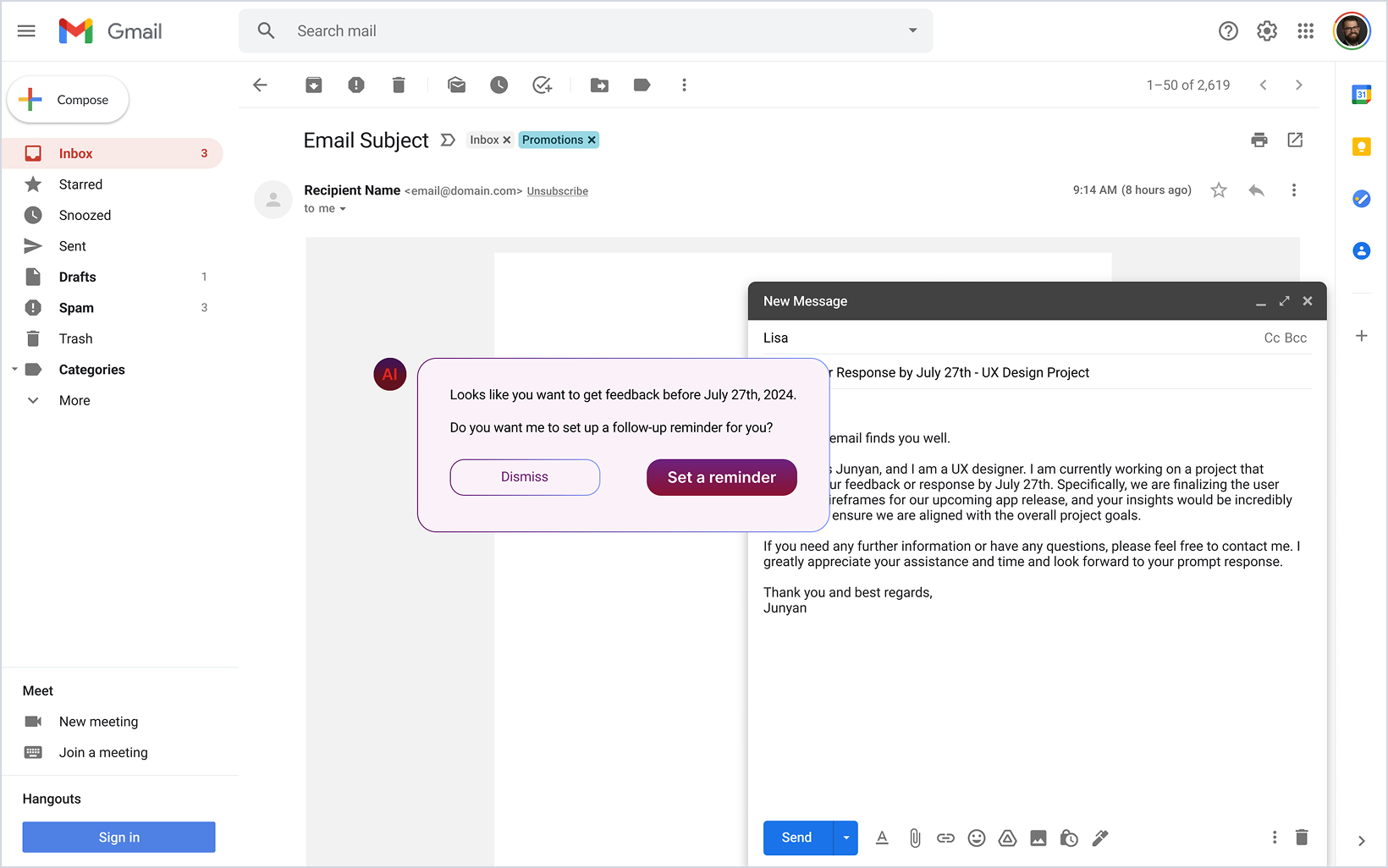
Lisa often misses updates by forgetting follow-ups and hopes for reminders
UX:
Leo detects specific reply dates in emails and prompts to set a reminder, which then appears on the calendar.
AI Technologies Used:
NLP and machine learning

Proofread
Scenario: Lisa is designing interactions for Lenovo’s AI assistant project. She needs a quick overview of this week’s progress, but the information on her computer is scattered and disorganized.
UX:
Clicking the AI icon and entering a query prompts the AI to generate a summary with source references.
AI Technologies Used:
Leo leverages NLP, machine learning, contextual analysis, and automation to detect errors and apply corrections automatically.
